IG Hero · Instagram Login Troubleshooting · 2026 Edition
Can't Log Into Instagram?
7 Reasons + Step-by-Step Fixes
Stop guessing which fix to try. Diagnose the real cause in 60 seconds, then run the exact recovery path for it.
⚡ Quick Take — What You Need to Know
What's in this guide
- First: 60-second diagnosis — which layer is broken?
- Reason 1: Your password really is wrong (and you don't know it)
- Reason 2: The app itself is the problem (browser works, app doesn't)
- Reason 3: Your network or IP is the problem
- Reason 4: "Challenge required" — Instagram wants to verify it's you
- Reason 5: Rate-limited — too many failed attempts
- Reason 6: 2FA / login code never arrives
- Reason 7: You're hacked, disabled, or in a security loop
- The full diagnosis decision tree (printable)
- FAQ
You typed the password. Three more times. Instagram still says it's wrong. Or the code never arrives. Or you hit a "challenge required" wall. Or the app just spins forever.
Here's what nobody tells you: "Can't log in" isn't one problem — it's seven different problems wearing the same shirt. Every fix-it listicle on Google throws all seven at you in a flat list, so you end up reinstalling the app when your real issue is a rate-limited IP. Or resetting your password when you were actually hacked (which makes things worse).
This guide flips it. Diagnose which layer is broken in 60 seconds. Then run the specific fix for that layer — and only that one.
First: 60-Second Diagnosis — Which Layer Is Broken?
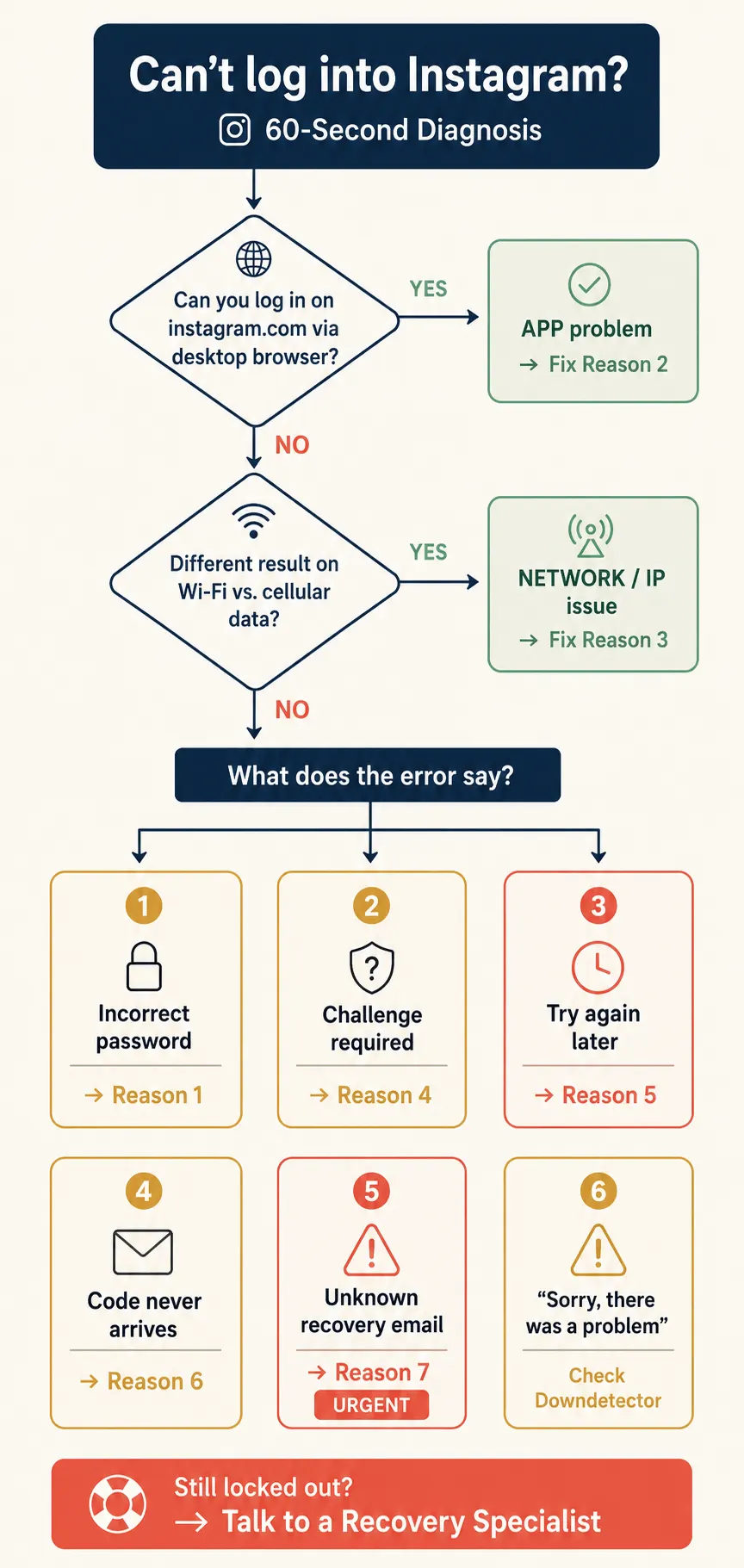
Before any fix, find out which of three layers your problem lives in. Device/app (your phone, app, keyboard). Network (your Wi-Fi, IP, Instagram's servers). Account (password, security flags, 2FA, hack, disable). Most people skip this and waste an hour fixing the wrong layer.
Run this 3-step test right now
Try Instagram on a desktop browser
Go to instagram.com on a desktop browser (not the phone app). If it works → your phone or app is the problem, not your account. If it fails the same way → keep going.
Switch off Wi-Fi and try again on mobile data
(Or vice versa.) If one network works and the other doesn't → it's a network/IP issue.
Check if Instagram is actually down
Check downdetector.com/status/instagram. If there's a spike, stop everything and wait it out.
📍 The result of this test tells you which section to read next. Don't try Reasons 1–7 in order. Jump straight to the one your test points to.
Your Password Really Is Wrong (and You Don't Know It)
Even when you're "sure" your password is right, the usual silent killers are keyboard auto-correct adding a space, caps lock on, typing your email when Instagram wants your username, or a Facebook password change that auto-synced. Eliminate these before anything else.
Fix it in 4 checks
Tap the eye icon and read it character-by-character
Reveal the password and look for a leading or trailing space — phone keyboards insert one when you double-tap space. This alone solves about a third of "wrong password" complaints.
Try your username instead of your email (or vice versa)
Instagram accepts both, but if your email is tied to a different sub-account, login can fail silently.
Did you change your Facebook password recently?
If your Instagram is linked via Accounts Center, a Facebook change can override Instagram's password. Try the Facebook one.
Reset the password — but only once
Tap "Forgot password?", request the link via email (SMS is less reliable), set a brand-new password. Don't request a second reset if the first is slow — it invalidates the first.
Risk warning: Do NOT type the same wrong password more than 3 times. After ~5 failed attempts Instagram locks logins for 12–24 hours, even with the correct password (that's Reason 5). Stop, reveal the password, verify, then try once.
The App Itself Is the Problem (Browser Works, App Doesn't)
If instagram.com works on a browser but the app keeps rejecting you, it's almost always a corrupted cache, outdated app, or autofill conflict — not your account. Browser-works/app-fails is the signature symptom.
Fix it in this order (don't skip steps)
Force-quit and reopen
Swipe Instagram away from the recent apps tray, then launch it fresh. Fixes ~20% of cases instantly.
Update the app
App Store / Play Store → search "Instagram" → Update. Login flows change frequently and old builds break.
Clear the app cache
Android: Settings → Apps → Instagram → Storage → Clear Cache (NOT "Clear Data" — that logs you out everywhere). iPhone: no separate cache button. Skip to step 4.
Uninstall and reinstall
The iPhone equivalent of clearing cache. You'll lose drafts but nothing else.
Disable autofill for Instagram
iOS Keychain and Google Password Manager sometimes fill in an old password silently. Type it manually instead.
📍 The "stuck at the birthday screen" bug: A common 2026 glitch — login succeeds but you get trapped on "Add your birthday" with a "Sorry, there was a problem" error. Workaround: log in on a mobile browser first, enter your birthday there, then return to the app. If that fails too, wait it out — it's a known server-side bug Instagram has been patching in waves.
Your Network or IP Is the Problem
If the same login works on mobile data but fails on Wi-Fi (or vice versa), your IP or network is the issue. Hotel Wi-Fi, public Wi-Fi, VPNs, and shared office networks are the usual culprits — Instagram flags them as suspicious or blocks them outright.
Network triage — fastest to slowest
Switch to your home/cellular network
If you're on hotel/coffee shop/airport Wi-Fi, swap to mobile data. This solves it instantly more often than you'd think.
Turn your VPN off
Instagram aggressively flags VPN IPs, especially free ones. If you use a VPN by default, disable it for the login attempt and re-enable after.
Restart your router
A 30-second power cycle assigns you a new IP from your ISP's pool, which can shake off a "suspicious IP" flag.
Try airplane-mode toggle
Turn on airplane mode for 10 seconds, turn it off. This forces your phone to reconnect to cellular and often refreshes the network handshake.
If your error is "incorrect password"
That's not a network issue, it's Reason 1.
If the error is "Sorry, there was a problem with your request"
Or "Couldn't connect", or you can load other apps but Instagram won't respond.
"Challenge Required" — Instagram Wants to Verify It's You
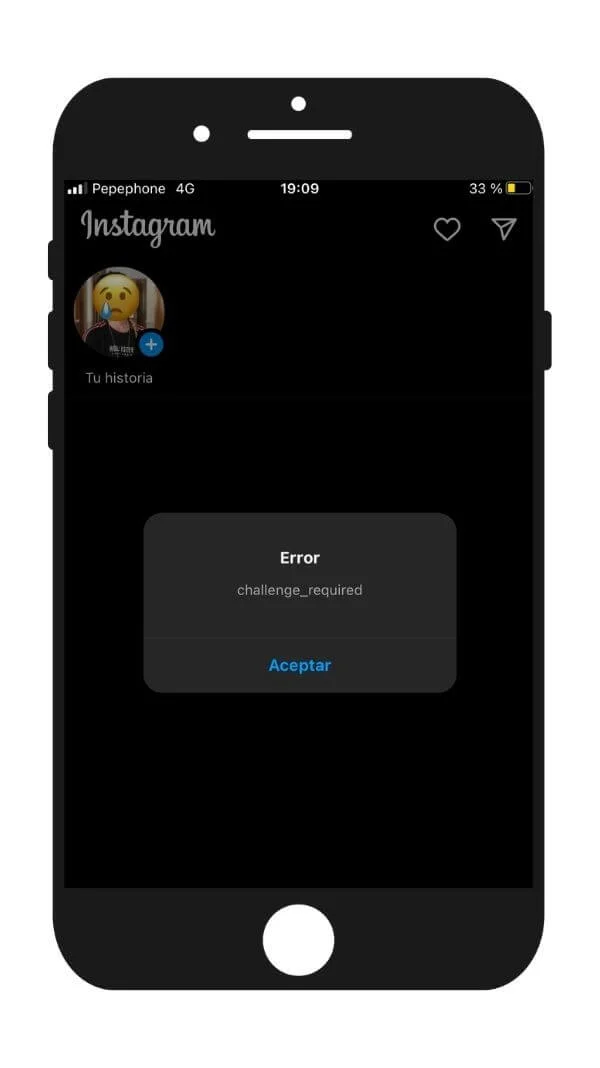
"Challenge required" means Instagram's security system thinks your login might not be you — usually because you switched devices, switched networks, or did something that pattern-matched a bot. It's a check, not a ban. Complete the verification and you're in.
What triggers it
New device, country, or IP
Logging in from somewhere new always raises a flag.
Third-party "follower" or "engagement" apps
Using them recently is a huge trigger.
Desktop browser after mobile-only use
Logging in via desktop after months of mobile-only use looks suspicious.
Multiple rapid attempts
Which can also trigger Reason 5 simultaneously.
How to clear it
Tap "This was me" or "Continue"
On the challenge screen, confirm it's you to proceed.
Enter the 6-digit code Instagram sends
Sent to your registered email or phone. Check spam.
If the code never arrives
Tap "Resend" once. If still nothing in 5 minutes, your registered email/phone may be outdated — see Reason 6.
If asked for a video selfie
Film it in the same lighting and angle as your profile photos. Mismatched selfies push your case into a manual review queue that takes days.
Don't request a challenge code repeatedly. Each resend extends the cooldown. Two resends in 10 minutes can lock the challenge flow for 24 hours.
Rate-Limited — Too Many Failed Attempts
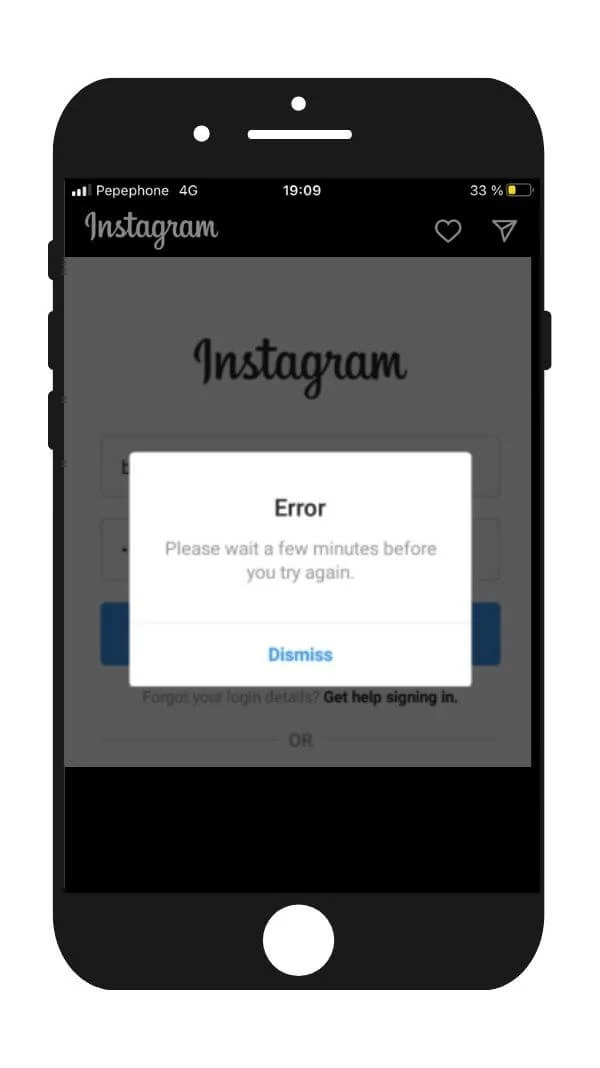
If you see "Please wait a few minutes before you try again" or "Try again later" — your IP or account got rate-limited after too many failed logins, resets, or code requests. The fix isn't a fix. It's waiting. Every new attempt resets the clock.
How long does it last?
| Severity | Duration | Trigger |
|---|---|---|
| Light | 15 minutes to 2 hours | After 3–5 failed attempts |
| Standard | 12–24 hours | Repeated resends or aggressive retries |
| Hard cooldown | 48–72 hours | Spamming login + reset + code requests together. Rare but real. |
What to do during the cooldown
Stop touching the app
Every new attempt resets the timer. Walk away.
Do not request another password reset
Single biggest mistake — people see "try again later" and tap "Forgot password" four more times.
Switch to a different network
(Mobile data if you were on Wi-Fi.) If the rate-limit is IP-based, a different IP may bypass it. If it's account-based, nothing changes — confirming it's account-level.
Wait the full 24 hours, then try ONCE
If you fail, wait another 24. Don't compound the cooldown.
📍 Why this happens silently: Instagram doesn't show a countdown. Users assume something else is broken and keep trying, which extends the lock. The advice you didn't read told you to "reinstall the app" — but the rate-limit is on your account, not your app. Reinstalling does nothing.
2FA / Login Code Never Arrives
You got past the password screen but Instagram is now asking for a 6-digit code that never arrives — whether that's an SMS code, an email code, or a code from your authenticator app. This is the single most common reason people stay locked out for days, and it has enough moving parts (lost authenticator, expired phone number, backup codes you never saved, carrier shortcode blocks) that it deserves its own playbook.
Quick check before you click through
SMS code never shows up?
Likely a carrier shortcode block, weak signal, or an outdated phone number on file.
Email code never shows up?
Check spam first, then verify the email on file is one you still own.
Authenticator app on a phone you no longer have?
You'll need backup codes or the "Try another way" path.
Masked email or phone on the code screen isn't yours?
Stop, this is a hack signal. Jump to Reason 7.
📍 Get the full recovery flow
We've built a dedicated step-by-step playbook for this problem — including what to do when you've lost your authenticator and never saved your backup codes. Read it here: Instagram 2FA / backup codes: lost access to your authenticator? Here's how to recover.
You're Hacked, Disabled, or in a Security Loop
If you've ruled out Reasons 1–6 and still can't log in, you're in one of three serious states: account taken over, account disabled by Instagram, or stuck in a verification loop that needs identity escalation. These aren't troubleshooting problems anymore — they're recovery problems.
Which one are you in?
Account takeover signals
You suddenly got logged out with no warning. The recovery email or phone shown on the reset screen is not yours. You got an email from Instagram saying your email or password was changed (and you didn't change it). 2FA is on but you never turned it on. → Full recovery playbook: Instagram Hacked & Email Changed? 2026 Fast Recovery Guide.
Account disabled signals
You see "Your account has been disabled for violating our terms." Login accepts your password but immediately shows the disabled notice. Your profile doesn't appear in Instagram search (try logged out, from a different account). → Full recovery playbook: Instagram Account Disabled For No Reason: 2026 Recovery Playbook.
Verification loop signals
You complete a challenge → it sends you back to login → which asks for the challenge again. Video selfie verification keeps "failing" but you look exactly like your photos. "Try again later" never resolves, even after 48+ hours. → Action: stop using the app. Go to instagram.com/hacked on desktop (yes, even if you're not hacked — it routes to identity escalation), select "My account was hacked" → "Send a video selfie." This is the only path that bypasses the automated loop and reaches a human reviewer.
Critical mistake to avoid: Do not create a new Instagram account with the same email, phone, or device while trying to recover your old one. Instagram links them by device fingerprint and both can get flagged. Recover the original first, then create new accounts later if needed.
The Full Diagnosis Decision Tree (Copy-Paste This)
Printable / copy-paste cheat sheet that compresses every diagnosis path above into a single linear flow you can run in under 2 minutes.
{`START
  │
  ├─ Can you log in on instagram.com via desktop browser?
  │    ├─ YES → It's an APP problem. → Reason 2
  │    └─ NO  → Continue ↓
  │
  ├─ Did you switch networks (Wi-Fi → cellular)?
  │    ├─ Different result on different networks → Reason 3
  │    └─ Same result everywhere → Continue ↓
  │
  ├─ What does the error say?
  │    ├─ "Incorrect password" only → Reason 1
  │    ├─ "Challenge required" / "Help us confirm it's you" → Reason 4
  │    ├─ "Try again later" / "Please wait" → Reason 5
  │    ├─ Code screen but no code arrives → Reason 6
  │    ├─ "Account disabled" or unfamiliar recovery email → Reason 7
  │    └─ "Sorry, there was a problem" → check Downdetector first
  │
└─ All Reasons 1–6 ruled out and still locked? → Reason 7 (escalate)`}What if You've Tried All 7 Fixes and You're Still Locked Out?
At this point your problem isn't a glitch — it's an account-recovery case. The DIY paths above only work for the diagnosable stuff. Once you're past that, you need someone who deals with Instagram recovery cases daily, knows which escalation channel actually moves, and can submit your case with the right evidence the first time. That's exactly what IG Hero's Recovery Specialists do.
Why most people stay locked out for weeks
It's almost never because their case was hopeless. It's because:
Wrong form submitted
There are at least 6 different recovery forms — and Instagram never tells you which to use.
Video selfie failed silently
The submission goes through but the verification fails with no clear feedback.
Repeated login attempts
Which actually make the issue worse, not better.
Emotional escalation
Instead of the specific evidence Instagram's reviewers actually look for.
Each one of those mistakes can add weeks — or permanently kill the case.
What our Recovery Specialists do for you
We've worked through hundreds of locked-account, hacked-account, disabled-account, and verification-loop cases. When you use the Recovery Guide, we:
Help you diagnose which recovery channel fits your specific situation
Not a generic "try everything" shotgun — the one path most likely to work for your case.
Help you submit through the channel that has the highest current success rate
This changes frequently — what worked in March 2026 isn't what works now.
📍 Get the full breakdown of how recovery actually works
Read our complete Instagram Account Recovery Guide. If you'd rather have a specialist handle it directly, you can request help once you get the Guide.
Open the Recovery Guide →What NOT to do while you decide
Don't keep retrying the original login
Every failed attempt adds noise to your case file and can push you into a longer cooldown.
Don't create a new account with the same email, phone, or device
Instagram links them by device fingerprint, and both can get flagged together — losing the old one and the new one.
Don't post about your lockout from a backup account tagging Instagram's handle
It doesn't reach anyone who can help, and it can flag the backup account too.
What's your login issue? Drop a comment and discuss with us — we update this guide every quarter with the patterns readers report.
FAQ
Why does Instagram say my password is wrong when I know it's right?
Three usual suspects: an invisible space inserted by your phone keyboard, autofill filling in an outdated cached password, or a recent Facebook password change overriding your Instagram one via Accounts Center. Tap the eye icon to reveal what you typed, disable autofill, and try the Facebook password if accounts are linked.
How long do I have to wait if I see "Try again later"?
Light rate-limits clear in 15 minutes to 2 hours. Standard rate-limits (the most common after 3+ failed attempts) clear in 12–24 hours. Every new attempt restarts the clock. Walk away from the app entirely and try once after a full 24 hours.
Is "Challenge required" the same as being hacked?
No. "Challenge required" is Instagram asking you to verify you're the legitimate owner — usually after a new device or new IP. Being hacked means someone else already got in. The tell: if the masked email or phone on the challenge screen isn't yours, you're hacked, not challenged.
Should I create a new Instagram account if I can't get into my old one?
No. A new account with the same email, phone, or device while your original is in recovery links the two by device fingerprint — both can get flagged. Recover the original first.
Does reinstalling the Instagram app help?
Only if your problem is in the app layer (Reason 2). It does not help with rate-limits, network blocks, challenge_required, 2FA issues, or hacked accounts. Always run the 60-second diagnosis first.
Why does it work on my browser but not on the app?
Classic Reason 2. Either the app has a corrupted cache, an outdated build, or autofill is silently filling an old password. Update the app, clear cache (Android) or reinstall (iPhone), and type the password manually instead of letting Keychain or Google Password Manager fill it.
Can a VPN cause login problems?
Yes — frequently. Instagram aggressively flags VPN IPs because they're heavily used by bot operators. Turn the VPN off for the login attempt and re-enable it after.
The Bottom Line
"Can't log in" isn't one problem — it's seven. The fastest people back into their accounts aren't the ones who try the most fixes. They're the ones who diagnose the right layer first, then run the exact recovery path for it.
Don't reinstall the app when your account is rate-limited. Don't reset your password when you've been hacked. Don't create a new account while the old one is in recovery. Diagnose the layer. Run the right fix. Stop everything else.
"Diagnose the layer. Run the right fix. Skip the rest."